If you would like to receive direct messages informing you about events, promotions or else turning notifications on can help a lot.
Please note that notifications are only available on mobile devices, on iOS and Android.
To do so, just follow the steps below:
- On iOS devices:
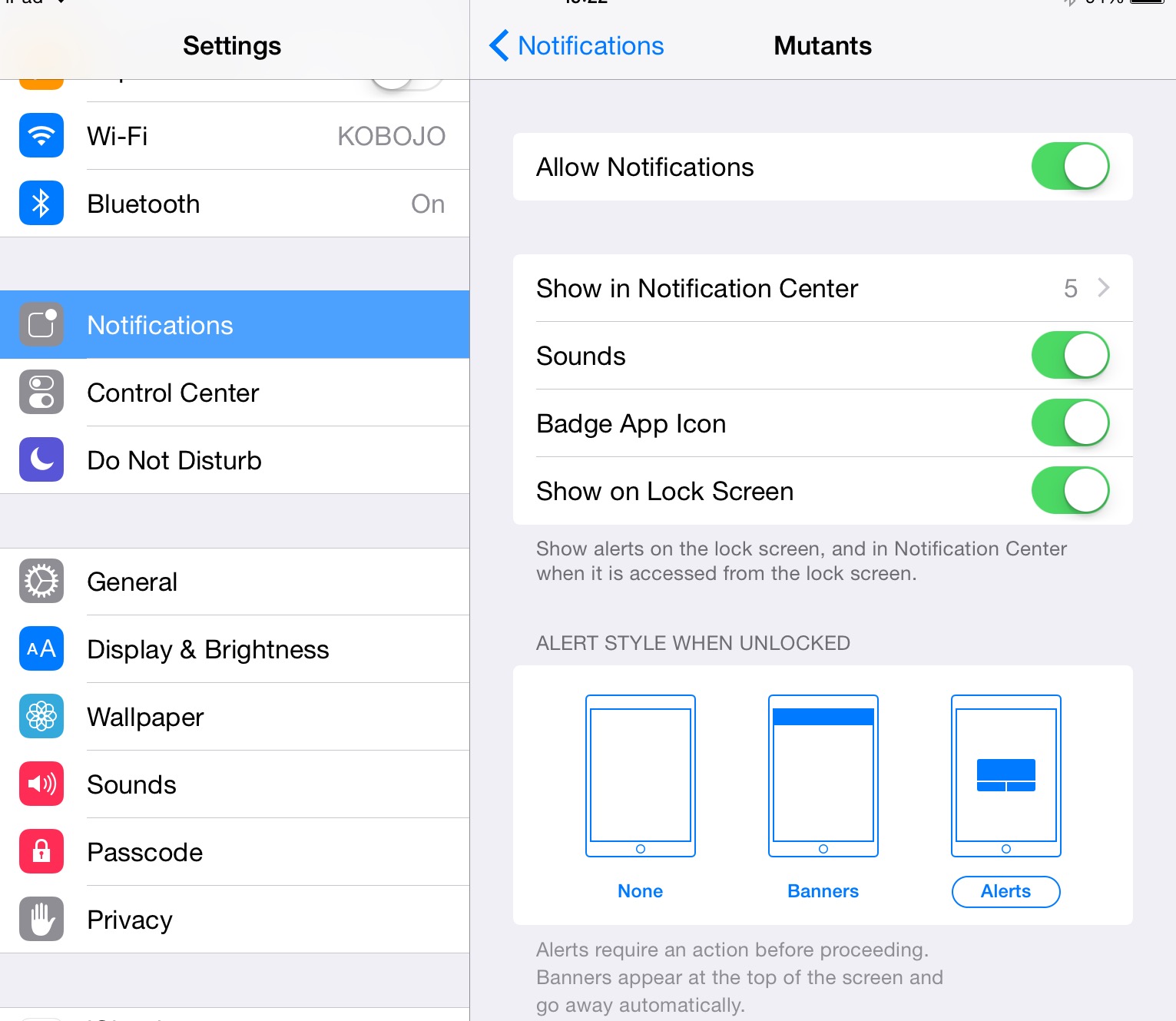
> Go to "Settings";
> Find the "Notifications" menu and enter it;
> Activate "Allow notifications" first;
> Then select if you want your notifications to have a sound, to show a badge on the icon of the app and/or the message to show on your screen even though your phone is locked (like a regular text message).
> To finish with you can select the style of your alert (the message that will show).
- On Android devices:
On Android devices, notifications are activated by default. If this is not the case and you would like to activate them, just follow those few steps:
FYI : Presentation of settings may vary from one Android device to another but globally speaking, you will find menus and icons in usually the same places.
> Go to "Settings";
> In the "Device" menu, select "Sound & notifications";
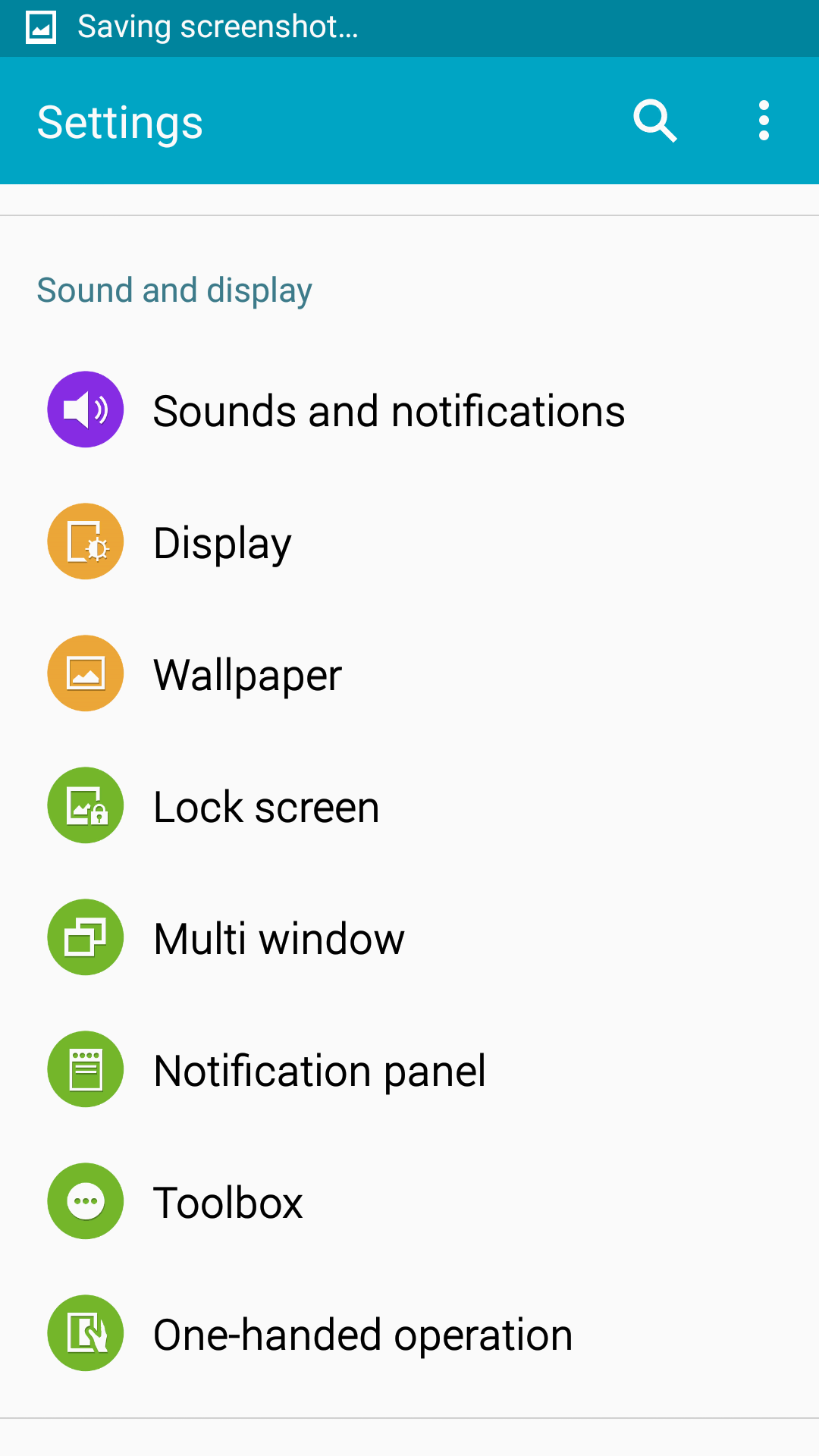
> Scroll down to the "Notifications" menu;
> In "When device is locked" select if you want to receive notifications on your locked screen or not;
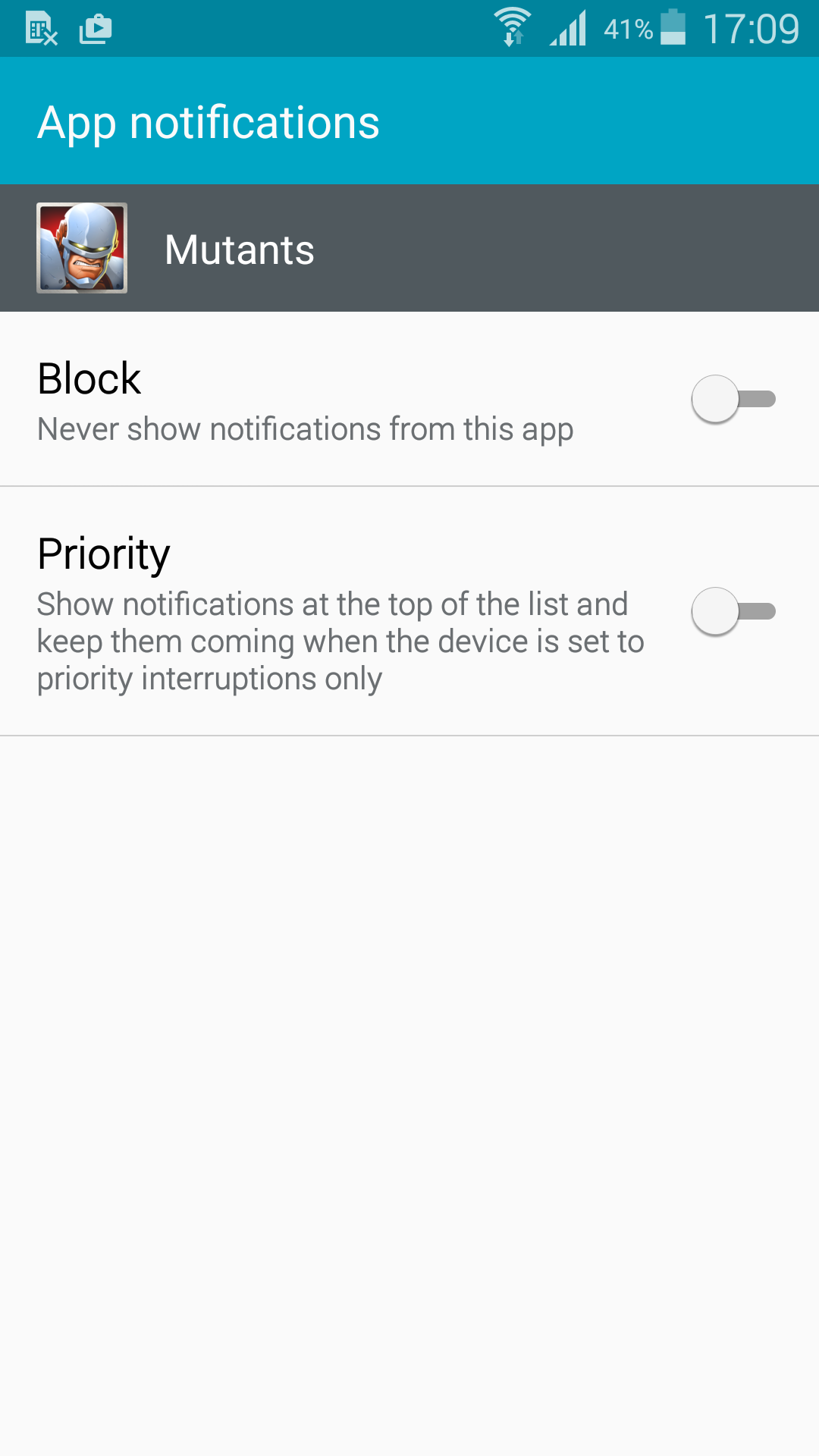
> Then go to "App notifications" and find the app you want to receive notifications from;
> Deactivate the "Block" option and activate if you want to or not the "Priority" option.
Comments